-1.png?width=150&height=31&name=logotipo_centro_de_ayuda%20(1)-1.png)
Available for these licenses:
 Event App Enterprise
Suite Enterprise
In this section, as an organizer, you can configure and download the data from the scans performed through:
- The Leadscanner module of Eventsbox by Meetmaps or your Branded App.
- The Lead Scanner App: an alternative for events that don't have an app. This tool allows exhibitors to manage leads collection by scanning badges. + info 👉What is the Meetmaps Lead Scanner App for Exhibitors?
All event attendees can benefit from this feature and scan the contact details of other attendees they meet at the event, although it tends to be especially popular with exhibitor representatives, and attendees they meet.
How does the Lead Scanner work?
Suppose "Attendee A"🍎 wants to save the contact of "Attendee B"🍏. To be able to do it:
- Attendee A🍎 must have the App downloaded to perform the scan.
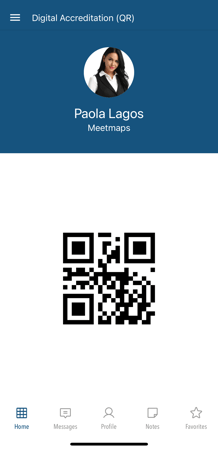
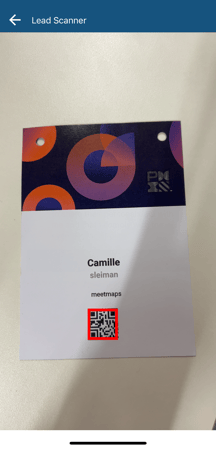
- Attendee B🍏 must have the QR code, either in the event app or on a badge.
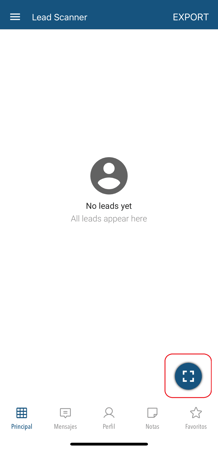
- Scan: To collect the data, attendee A🍎 accesses the Lead Scanner and clicks on the square icon to scan.
Example, the scan is done from the Lead Scanner module in App of the Event.
- Through the QR Accreditation module of the event App.
- By showing the badge that contains the QR.
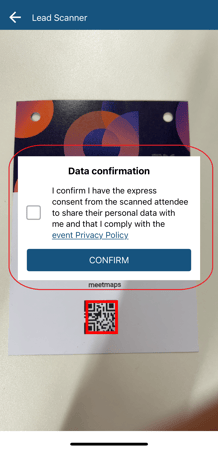
2. Consent: Once the QR code has been scanned, attendee A🍎 must accept the Privacy Policy and consent to the processing of attendee B🍏's data.
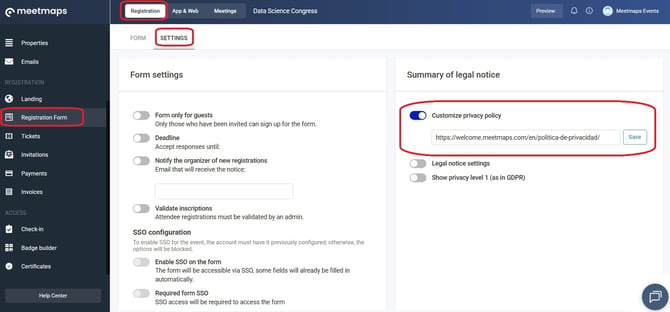
NOTE 🗒️: You can customize the privacy policy in Registration > Registration Form > Settings.
Please note that this privacy policy also applies to the Registration Form, Landing Page, App, and Website. What options are available to customize the legal notices and privacy policy?
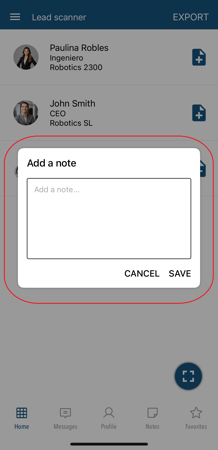
3. Manage the lead: Once the Data Confirmation has been accepted, the new lead (attendee B's data🍏) is displayed in the Lead Scanner module. Here, attendee A🍎 can add private notes for attendee B's contact (visible only to attendee A).
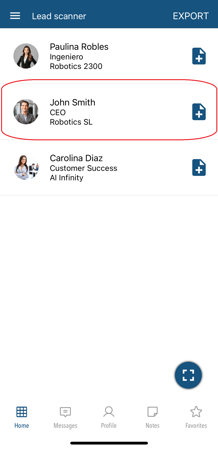
Additionally, attendee A🍎 can export the data for all scanned contacts by clicking the "Export" button. This will send an email to attendee A🍎 with a .csv file containing all scanned contacts.
NOTE 🗒️: When downloading the Leads Excel file from the Lead Scanner module, the document includes a notes column with the following recorded notes +info 👉What is the notes module?
- Lead Notes: Notes taken directly when scanning a contact.
- Attendee and 1to1 Meetings Notes: Notes taken from the Attendees module or the 1to1 Meetings module will only appear in this Excel file if that attendee's QR code was also scanned.
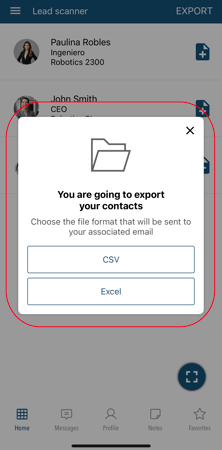
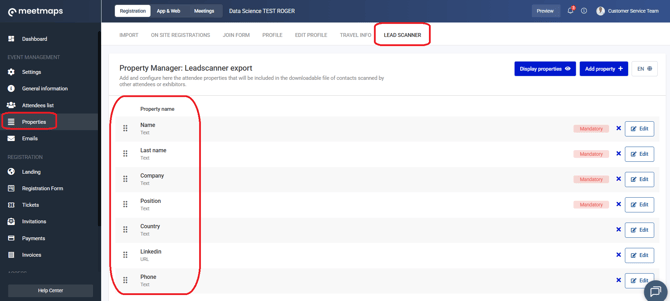
NOTE 🗒️: The contact data that attendees can share and download corresponds to the fields that you have enabled in the Properties > Lead scanner (with the email).
Configuration
There is a native property linked to this functionality: Lead Scan Consent.
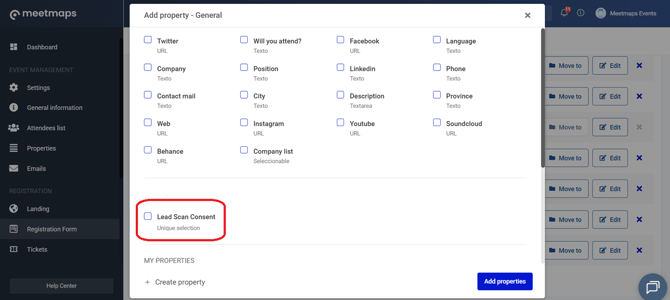
Its purpose is to confirm whether the attendee whose QR is being scanned wants to share their data through the QR scan or not.
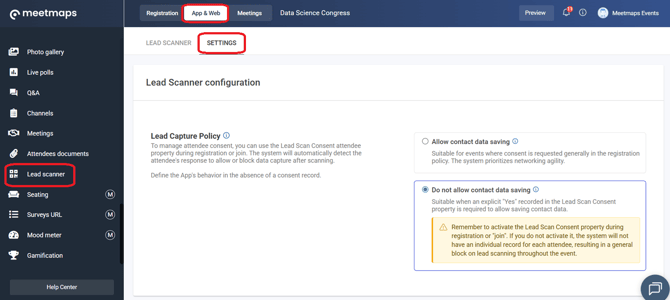
This property is "optional". In cases where this property is empty (either because it was not added to the registration or join form, or the attendee was imported without this value completed), you have two configuration options under App & Web > Leadscanner > Configuration.
In this section, you can configure these two options:
-
Allow saving contact data: Suitable for events where consent is requested generally within the registration policy. The system prioritizes networking agility.
-
Do not allow saving contact data: Suitable when an explicit "Yes" recorded in the Lead Scan Consent property is required to allow saving contact data.
The property will need to be in the Registration Form or in the Join form (and activated) of the App (or Web).
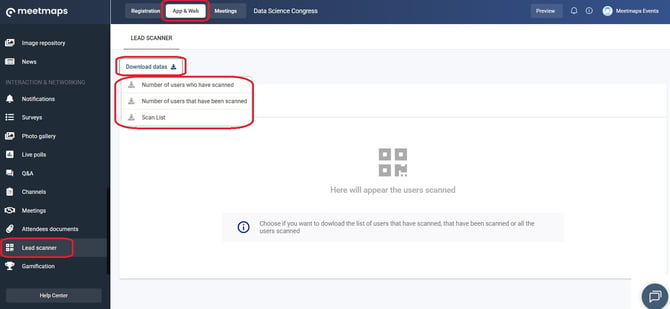
EXPORTS 🔢 : By clicking on Download data you will be able to download
- The number of attendees who have scanned ( email, name, and number of times scanned).
- The number of attendees who have scanned you (email, name and number of times you have been scanned)
- The total of the scanned list (Setter is the one who scans the QR and Getter is the scanned one)