![BLAU__EMBLEMA PRINCIPAL SENSE ESLOGAN (1)-1.png]](https://help.meetmaps.com/hs-fs/hubfs/BLAU__EMBLEMA%20PRINCIPAL%20SENSE%20ESLOGAN%20(1)-1.png?height=40&name=BLAU__EMBLEMA%20PRINCIPAL%20SENSE%20ESLOGAN%20(1)-1.png)
Available for the licenses:
 Virtual Venue Pro, Enterprise *
Suite Pro, Enterprise *
* By purchasing Webinar minutes
A Webinar (short for Web Seminary) is a presentation, conference, or workshop that takes place online, allowing the connection of hundreds or thousands of attendees in real time.
The main objective is to share educational or informational content with a big audience, maintaining a flow of communication that is organized and controlled.
There are three types of roles with different responsibilities:
-
Panelist: The person presenting or speaker of the webinar. Can be an expert or invitee that exposes the central content of the webinar.
- Moderator: Acts as the host and “director” of the webinar. He is the one in charge of leading the development of the session.
-
Attendee: he registers and accesses the webinar to consume the content.
IMPORTANT❗Webinars are only available for the Web 💻
NOTE 🗒️: Take a look at the main article about how to configure the agenda section + info 👉What is the Agenda Section?
This article is divided in 2 sections:
1. Webinar configuration and attendee roles.
2. Participating in a webinar from the point of view of an attendee as a viewer, panelist, or moderator.
Configuration
Creation of a Webinars' agenda session
1. In App & Web > Agenda, create a new standard or workshop type agenda session. In the 2. Modality section, select Virtual > Streaming Meetmaps
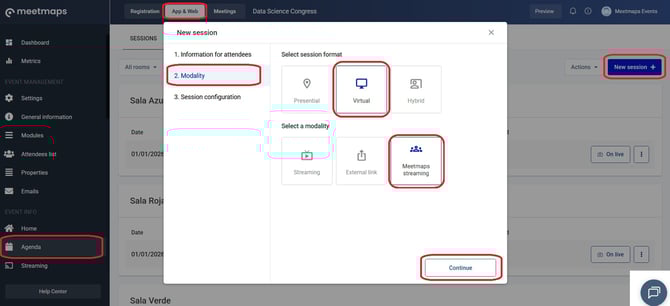
NOTE 🗒️: If Streaming Meetmaps is not available as an option, contact the support team.
Attendee Roles Configuration
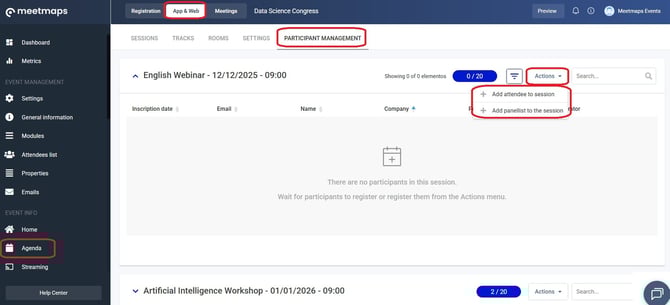
2. In Agenda > Participant Management, click the “Actions” button of the session you need and add attendees or panelists. You can add them by role or individually.
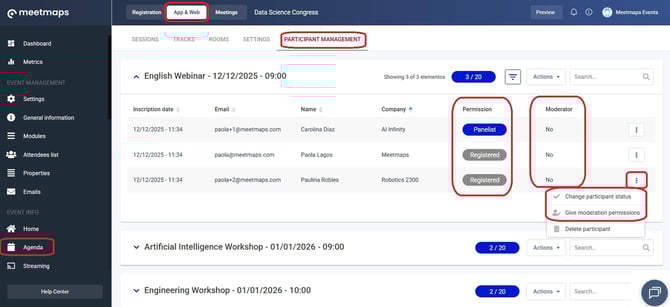
NOTE 🗒️: There are three types of permissions:
- Registered: You can be given moderator or panelist permissions (from the Dashboard by an admin or by the moderator in the Web event session).
- Registered with moderator permission: Moderator permissions can be revoked (only from the Dashboard by an admin). You can't be a panelist and a moderator at the same time.
- Panelist: Panelist permissions can be revoked, giving the attendee just registered permissions. Once a registered attendee, you can be granted moderator permissions (only from the Dashboard by an admin).
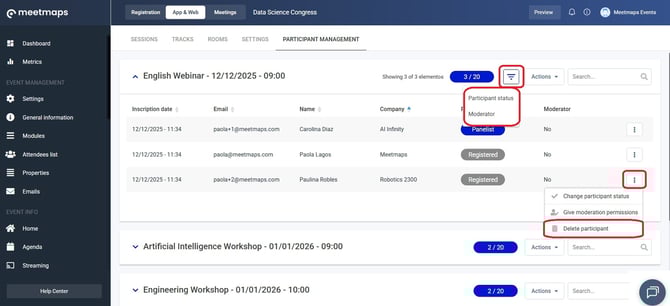
3. Remove an attendee by clicking on “delete participant” and filter the list of session attendees by participant status (all, registered, panelists) and by moderator (yes/no).
Participating in a webinar through Whereby from the attendee's point of view
The attendee (panelist, registered participant, or moderator) enters the Web event and the Agenda module. They access the webinar session and write their name.
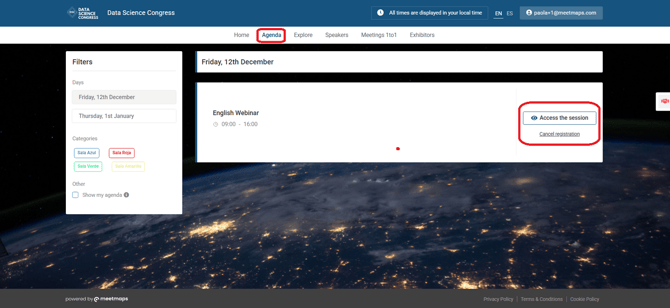
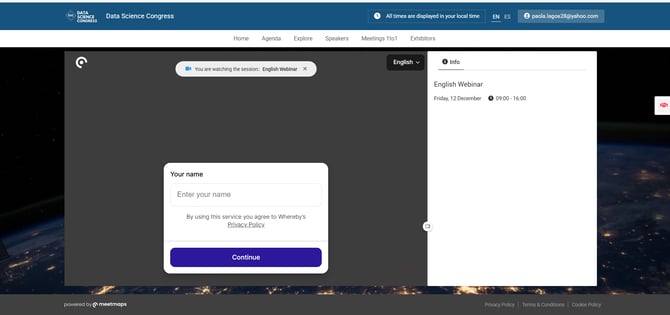
NOTE 🗒️: Once inside the session, the view of the session depends on the attendee's permissions.
Registered permission ⚫
When logging in as a registered attendee, you are only allowed to enter as a "spectator". You cannot enable your camera or microphone.
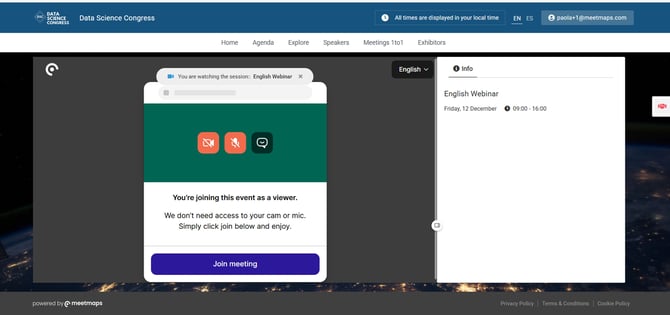
If the registered attendee receives an invitation to be a panelist from the moderator, they can accept or decline it.
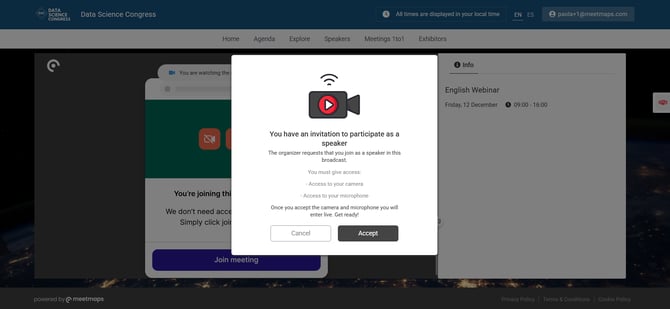
Registered with moderator permission 🔵
The moderator also cannot enable their camera or microphone, but they have access to the Panelists tab.
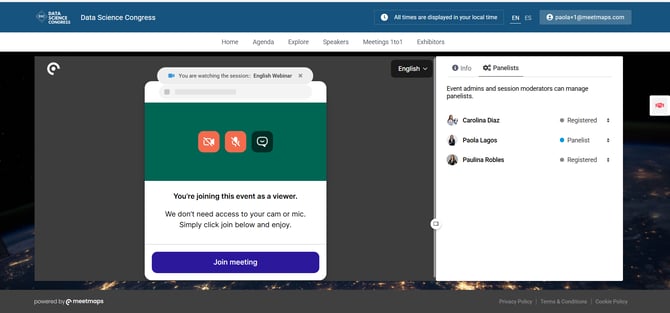
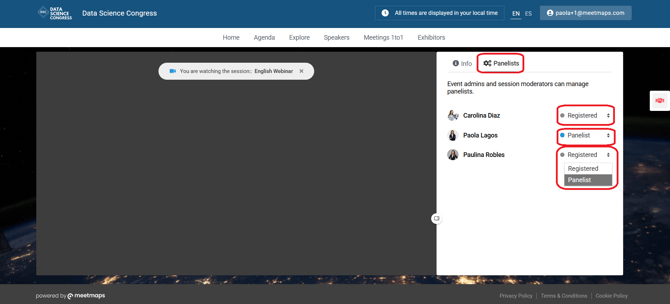
The moderator can change the permissions of other attendees from this tab. An invitation can be sent to a registered attendee to become a panelist, or change the panelist's permission to those of a registered attendee.
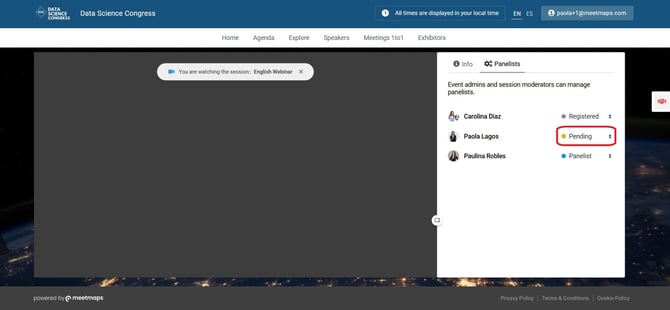
If the moderator invites an attendee to be a panelist, the status of that invitation remains "Pending" until the registered attendee accepts it.
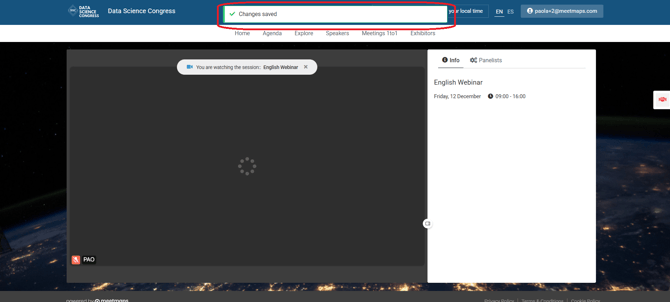
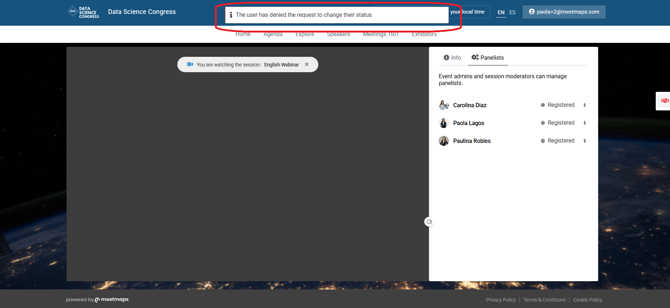
When the registered attendee accepts or rejects the invitation to become a panelist, it is indicated at the top of the screen.
- Attendee accepted the invitation
- Attendee rejected the invitation
Panelist Permission🔴
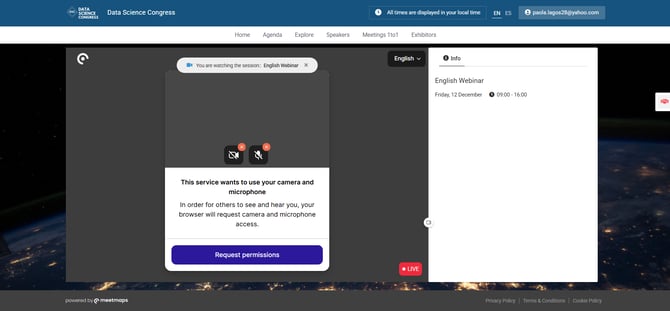
When the panelist first enters the session, the website requests permission for the camera and microphone.
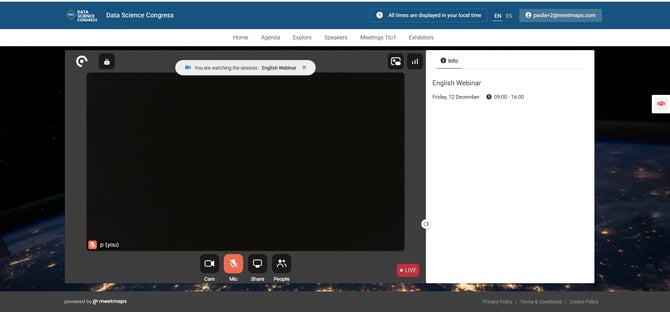
As a panelist, you can:
- Turn your own and other panelists' microphones and cameras on and off 👥
- Share your screen
- Highlight another panelist 👤
- View the list of registered attendees 📝
- Edit a registered attendee's name
- Remove a registered attendee or all attendees
- Start picture-in-picture (continue watching while switching between applications)
- View the meeting signal diagnostics 📊
- Device preferences
- Change language 🔤
- Add a video background effect
- Other camera and microphone settings, e.g., noise reduction, panoramic video, etc. ⚙️
If there is only one panelist 👤
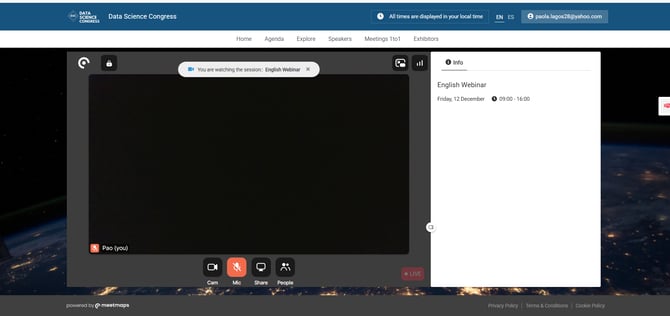
If there are multiple panelists 👥
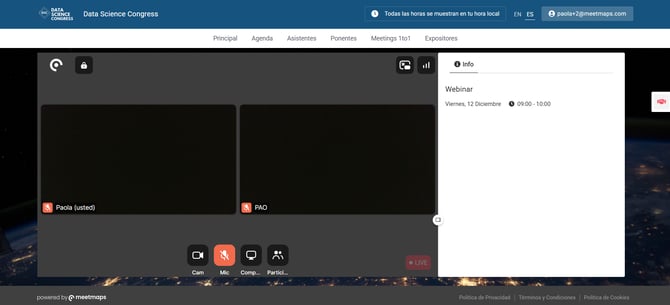
NOTE 🗒️: There is the possibility of having up to 24 panelists.
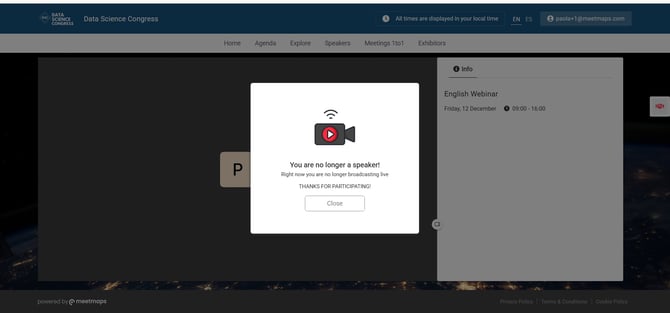
If the moderator resets the panelist's permission to registered, a screen appears indicating that they are no longer a speaker.
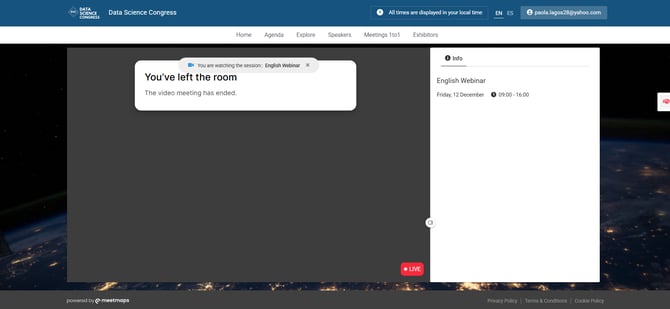
If a panelist is kicked out by another panelist, the attendee is removed of the session room.
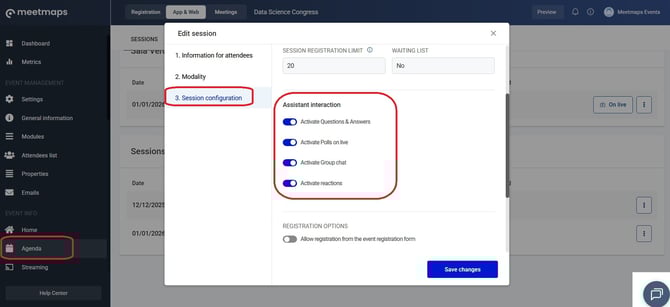
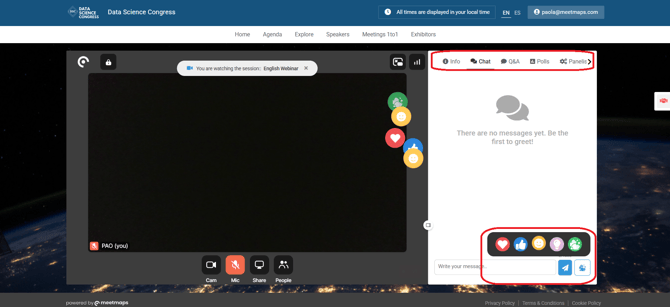
You can activate Assistant Interactions in 3. Session Configuration section when creating or editing the webinar's agenda session.
NOTE 🗒️: Event administrators will always have moderation permissions, even if they only have registered permission.