-1.png?width=150&height=31&name=logotipo_centro_de_ayuda%20(1)-1.png)
Configuration
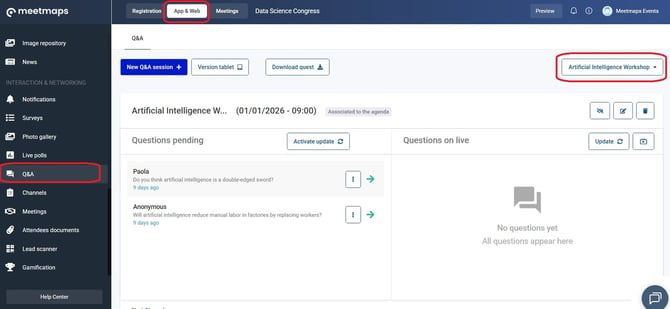
1. In App & Web > Q&A select the session you need.
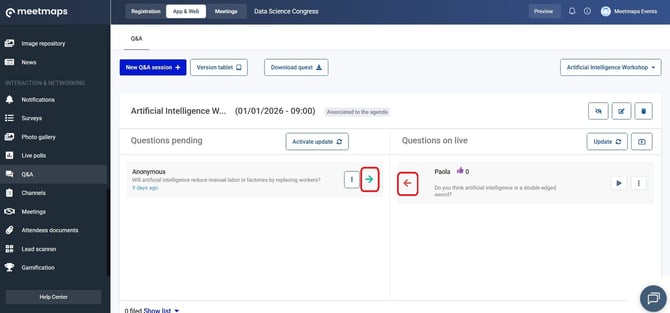
2. Click the green arrow to validate the question and make it visible. If you made a mistake and want to put it back in pending validation, click the red arrow.
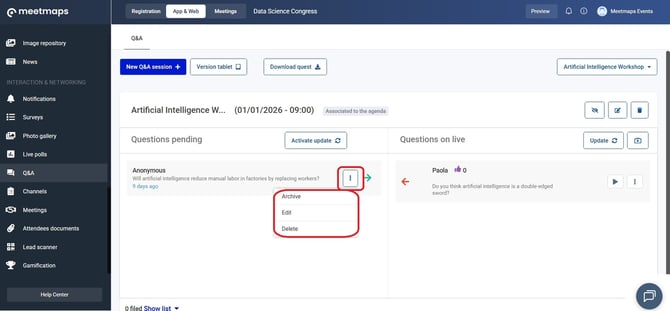
3. It is possible to archive, edit (spelling errors, etc.), or delete a question.
4. To highlight a specific question, click the Play button ▶️
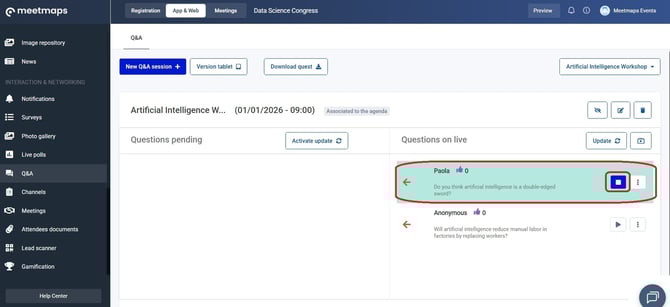
5. The highlighted question will look like this:
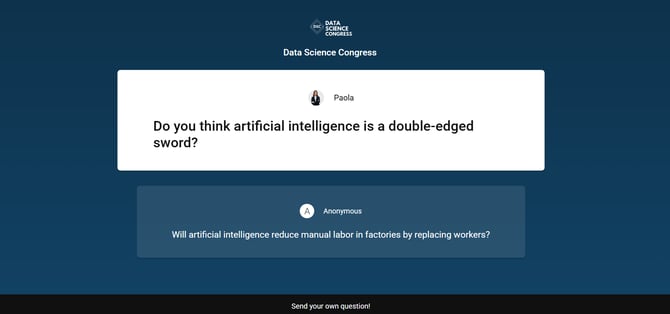
NOTE🗒️: You can only highlight one question at a time. Pressing the "play" button for another question will unhighlight the previous one. Also, the order of the questions on the screen cannot be changed, so the highlight function is useful for highlighting a specific question.
6. If the question has already been answered, or you simply don't want it to be visible, you can Archive it.
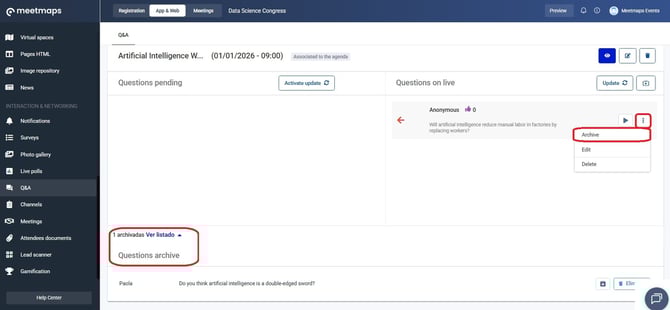
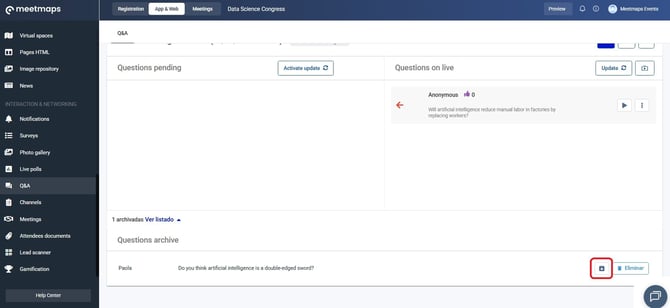
NOTE🗒️: If you wish to unarchive a question, simply go to the Archived Questions section and select the up arrow icon.
Transmitting Questions to the Speaker
Questions submitted to the speaker can be transmitted via:
- The audiovisual equipment on a large screen in the room where the event is being held.
- The speaker or moderator presenting from home can have a tab open with the questions validated by the organizers and answer them.
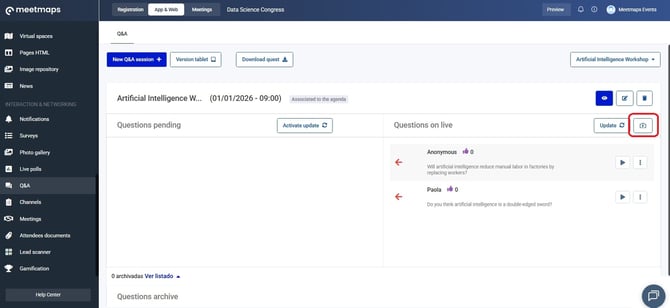
1. Click on the "mini tv" button.
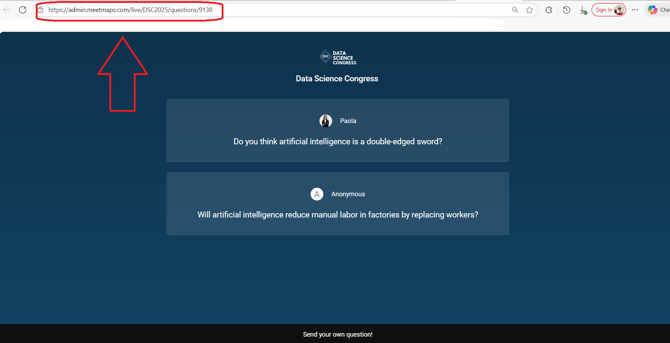
2. This opens a new tab with the URL of the already validated questions. If needed, copy this link and send it to the people you need.
IMPORTANT❗By default, the live stream screen is in Spanish, but if you want to change the language to English, you must add this suffix to the generated URL: ?hl=en. For Catalan: ?hl=ca.
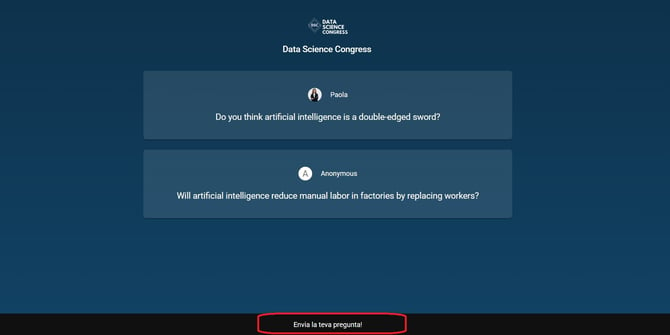
NOTE🗒️: This screen will always have the main color, logo, and event name by default.
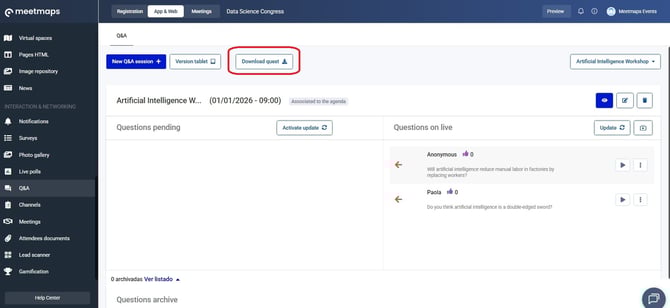
EXPORTS 🔢 You can download the questions for the speaker along with the details of your submission and who submitted them by clicking on "Download questions".