-1.png?width=150&height=31&name=logotipo_centro_de_ayuda%20(1)-1.png)
Available for these licences:
 Access Starter, Pro, Enterprise
Event App Starter, Pro, Enterprise
Virtual Venue Starter, Pro, Enterprise
Suite Starter, Pro, Enterprise
Attendees list
In this section is where the attendees of our event are displayed. These attendees can be input into the Event Management Software in various ways:
- Registration form.
+ info 👉 How to create a registration form? - Registration form with ticket sales.
+ info 👉 What is the Tickets section? - Massive import of attendees through CSV (Excel/spreadsheet).
+ info 👉 How can I import and/or edit attendees in bulk? - Manual registration of attendees (one by one).
+ info 👉 How to manually register an attendee?
- Attendees' Status + info 👉 What status can an attendee have??
- Last connection in the Meetmaps servers
- Properties that you have completed or obtained from the registration form.
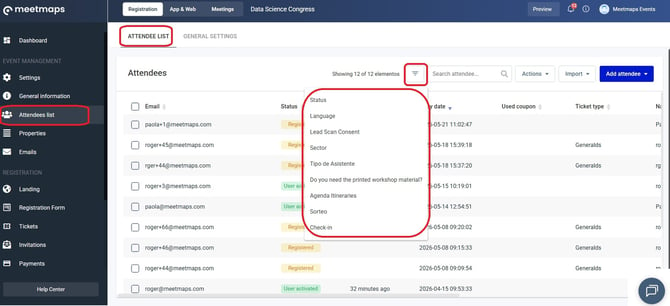
NOTE🗒️: Filter attendees through single-selection properties
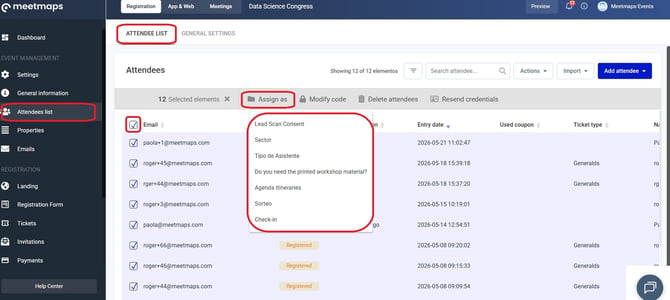
You can also assign a unique property to a group of attendees in bulk:
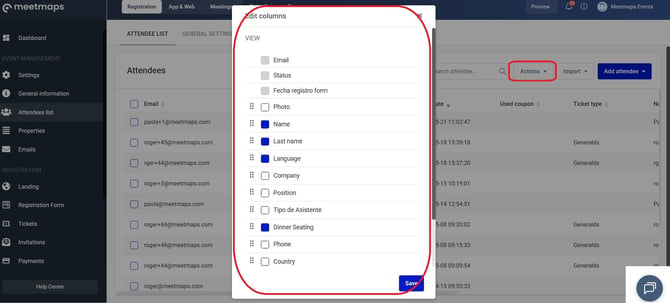
NOTE🗒️: sort and hide columns (properties) in "Actions > Edit columns"
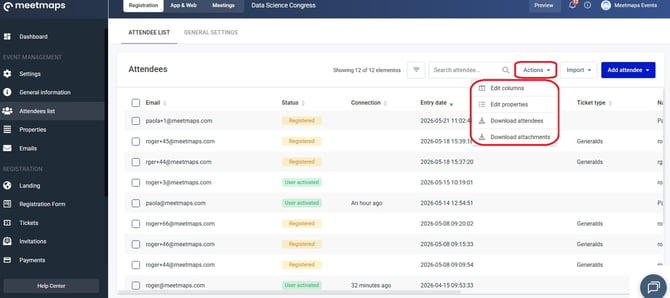
EXPORTS 🔢: By clicking Actions you can:
- Download attendees (.xlsx/.csv), which contains the information of each attendee.
- Download attachments (In the case that attendees have a unique selection property of the "File" type where they have uploaded PDFs or images. Does not apply to the PHOTO property)
- Download accreditations.
General Settings section
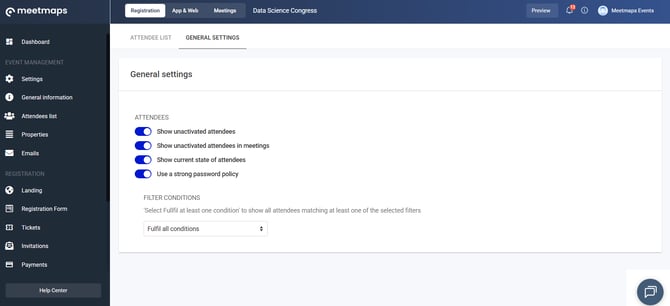
- Show unactivated attendees: even if attendees have not accessed the App or Virtual Event Web for the first time, they will appear in the "Explore" module (attendees), and attendees can request:
a. "Simple" meetings (module "Meetings")
b. Send messages. + info 👉 What is the Messages module?
- Show unactivated attendees in meetings: even if attendees have not accessed the App or Virtual Event Web for the first time, they will appear in the "Meetings 1 to 1" module (1 to 1 meetings between attendees), and attendees can request meetings.
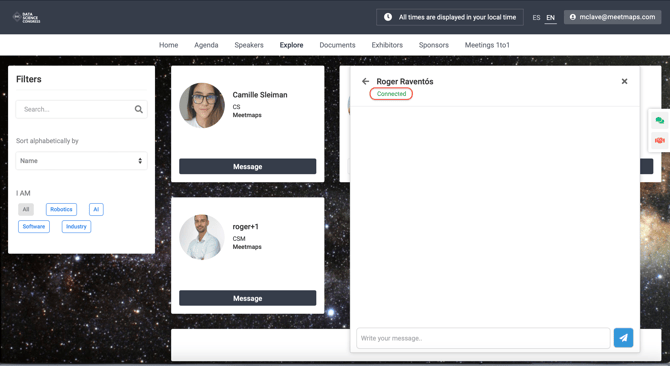
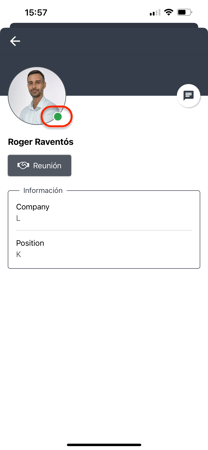
- Show current status of attendees: shows if attendees are connected/online.
- Use a strong password policy: passwords with a minimum number of characters, capital letters, numbers, and some special character.
- Filter Conditions: these are the filters that users could use for the "Explore" module (attendees"). There are two options:
1. Meet at least one condition: Show all attendees who meet at least one of the selected filters.
2. Meet all conditions: By selecting 2 options, only those attendees who meet both conditions are shown.
NOTE 🗒️: In Properties, choose which single or multiple selection property you want to be a filter in the -explore- wizard module by activating the switch.
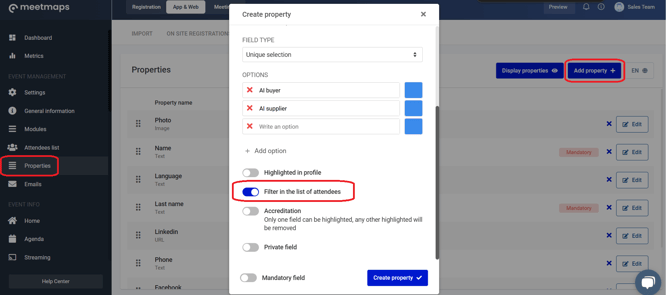
IMPORTANT❗ If you want both your App and Web to be social/networking and for attendees to interact with each other, don't forget to activate the Attendees and Messages modules 👉 What is the Attendees module?
The Assistants module (explore)
This module displays the information collected in the attendee list, allowing everyone to connect with each other, network, and build community.
IMPORTANT ❗ Remember to activate this module and also the Messages module 📬for optimal message exchange among attendees. Here's a reminder of how +info 👉 What is the modules section?
If only the Assistants module is activated but the Messages module is not, messages cannot be sent.
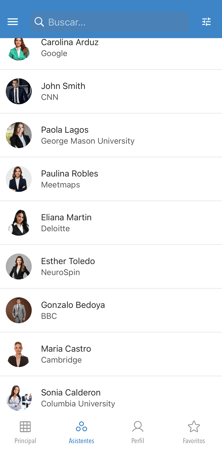
As Shown
- Order of appearance: Attendees who have logged in for the first time most recently are shown first.
- Profile preference: The system prioritizes users with photos in the first positions.
App📱
Web 💻
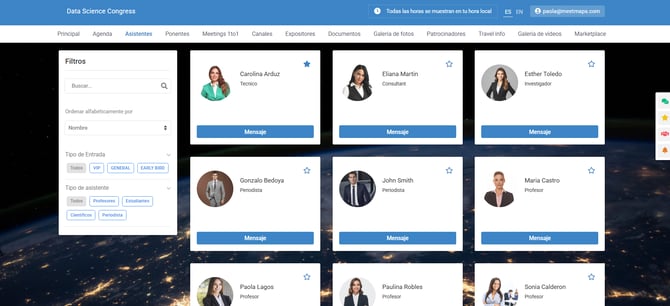
NOTE 🗒️: Attendees can also search for specific attendees via the search bar or filter attendees by roles.
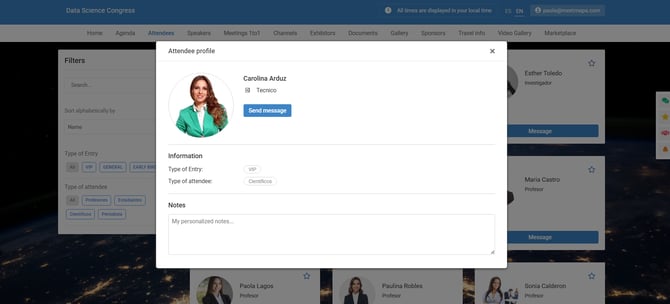
How to view an assistant's profile
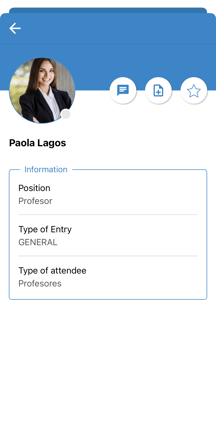
In Properties > Profile you configure what data you want attendees to see about other attendees.
+ info 👉 What is the Profile Tab in the properties section?
App📱
 Web 💻
Web 💻